DocsUser manual
Models
The Models page lists the eleven open decision models the studio runs, says what each is good at and how it compares with TypeSafe's hosted Jev, and is where you download, load and eject them.
The page#
Open Models from the sidebar.
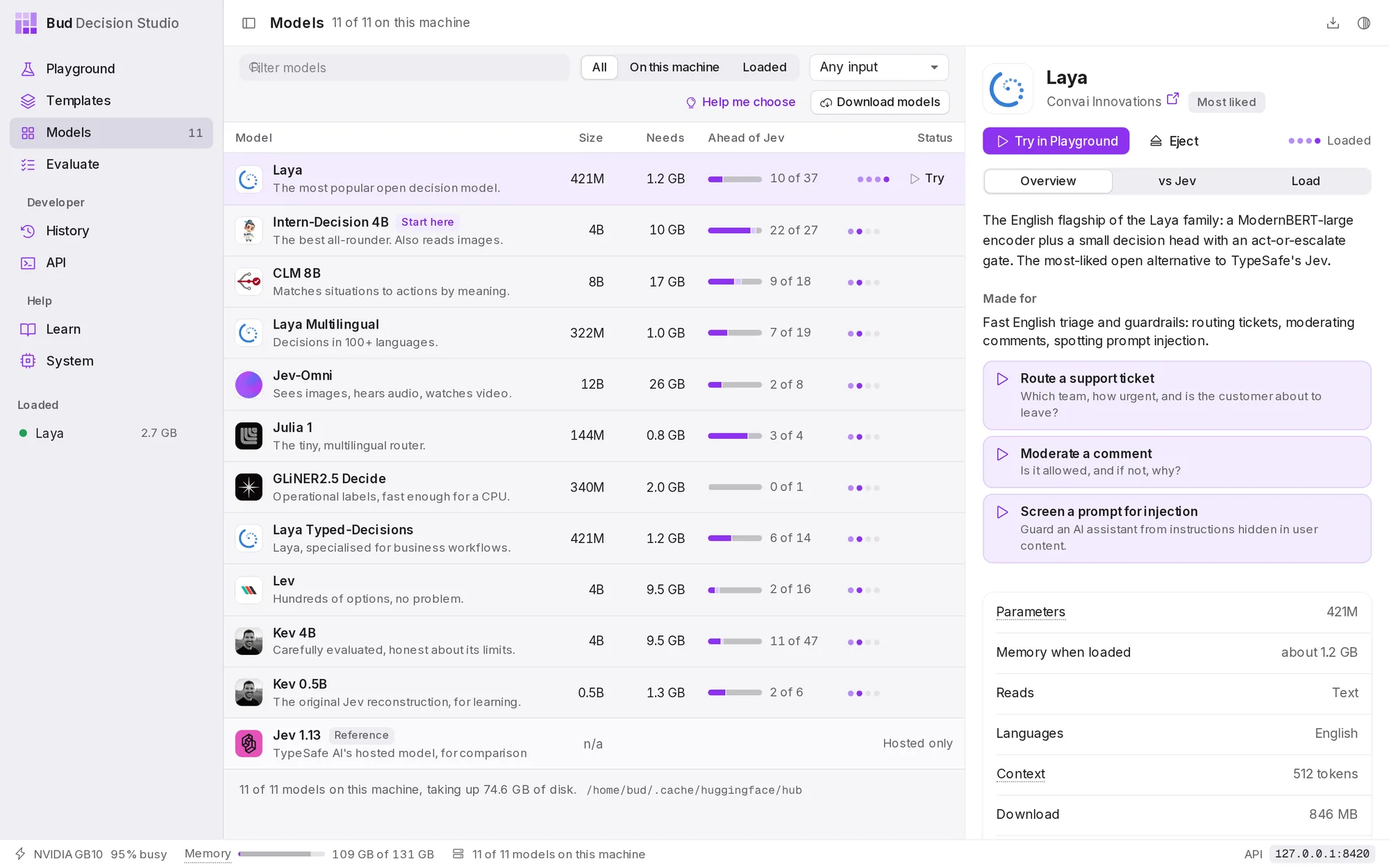
The table has a row per model: its name and one-line summary, its size in parameters (Size), the memory it needs when loaded (Needs), what it reads (Reads: text, images, audio, video), how its published results compare with Jev (Ahead of Jev), and its status. Choose a column heading to sort by it; the default order puts loaded and downloaded models first. The last row is Jev itself, TypeSafe's hosted model, kept for comparison; it cannot be downloaded.
Above the table:
- Filter models finds a model by name, maker, summary or language.
- All, On this machine and Loaded narrow the list.
- Any input, Reads images, Audio and video and Multilingual filter by what a model reads.
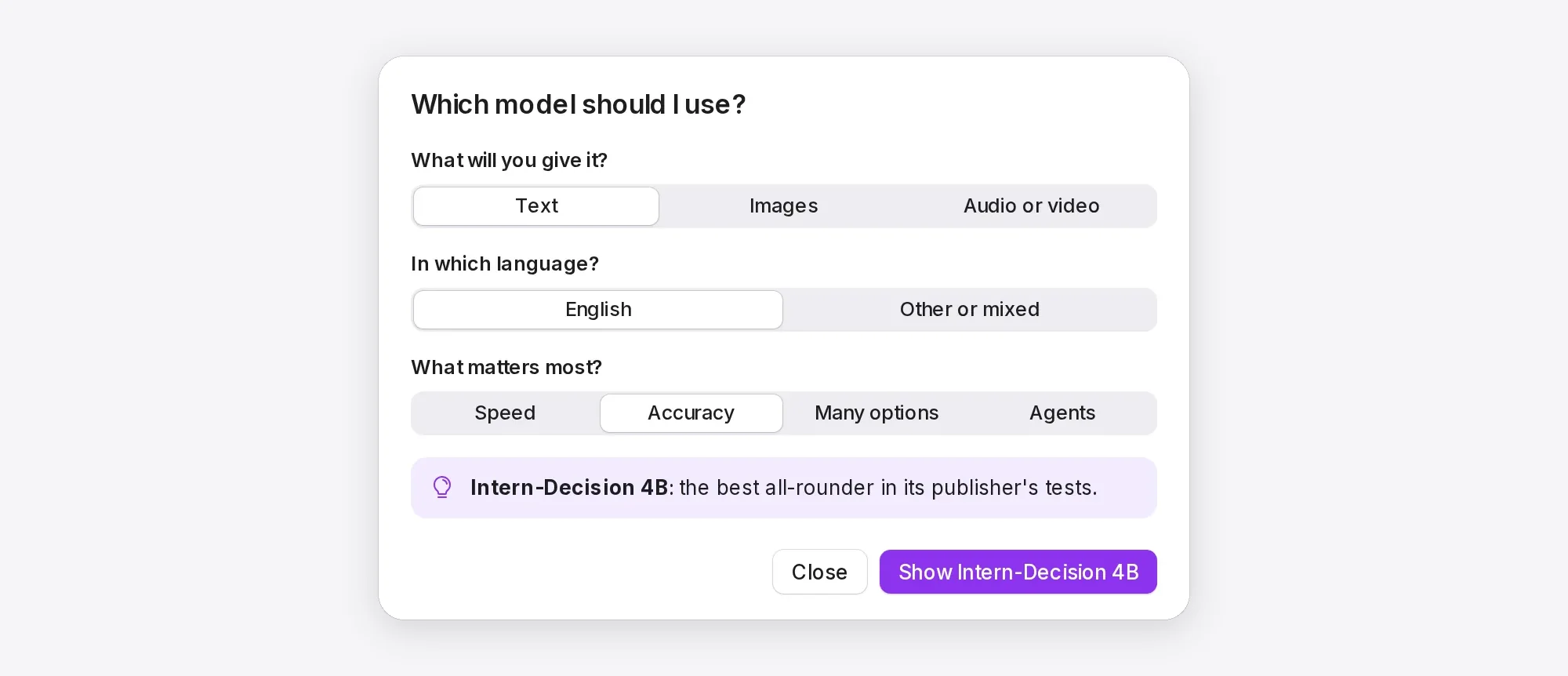
- Help me choose asks three questions and recommends a model.
- Download models opens the list of models to download.
Models you trained on the Train page appear in the table too, with a Fine-tuned badge and their held-out score before and after training. They use the files of the model they were trained from plus a small file of changes, so they need no extra download and the same memory.
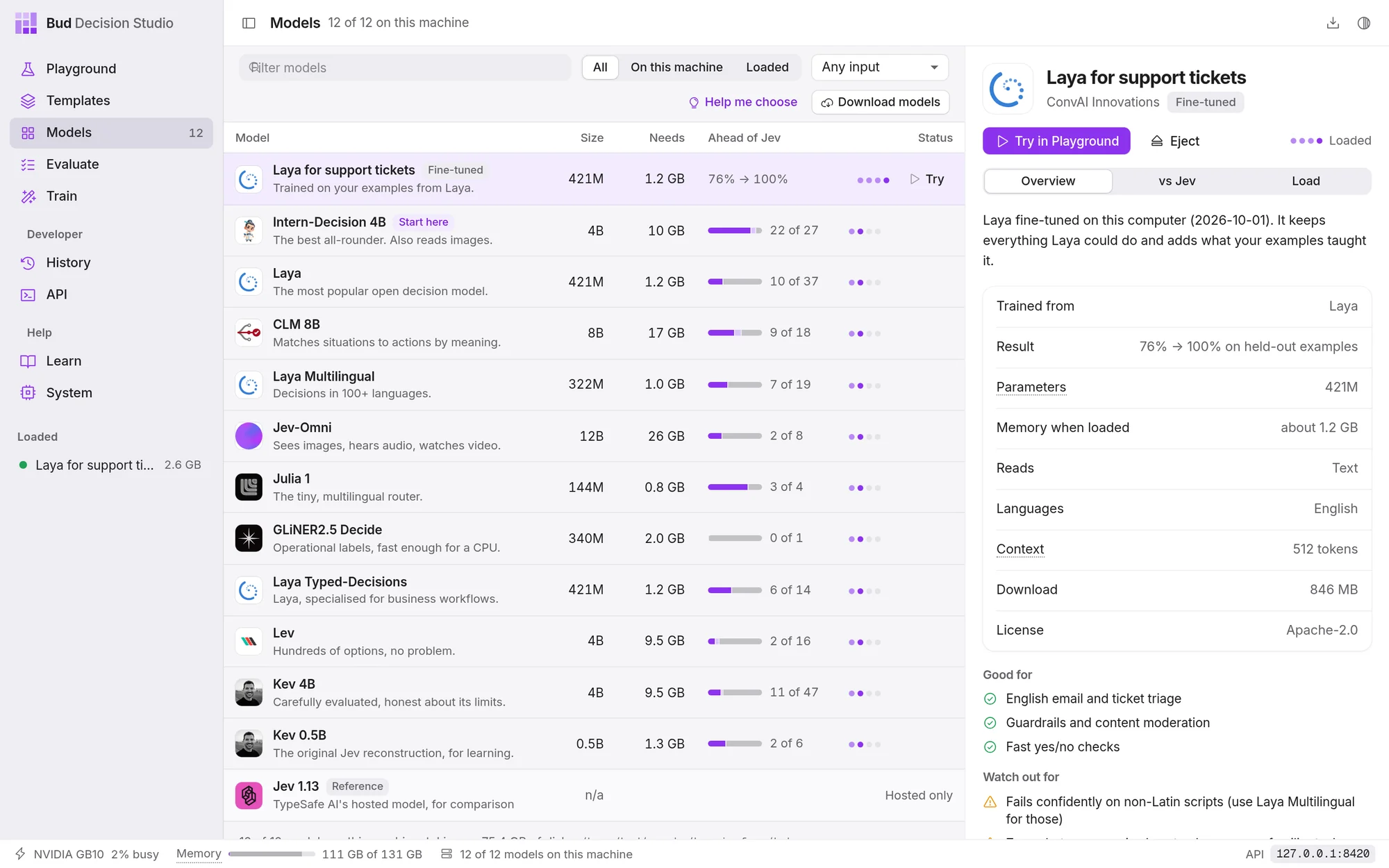
Below the table, a line says how many models are on this computer, how much disk they take and which folder holds them.
Use ↑ and ↓ to move through the table. Double-click a loaded model to open it in the Playground.
Which model to use#
| Model | Size | Good at | Reads |
|---|---|---|---|
| Julia 1 | 144M | fast multilingual routing | text |
| Laya Multilingual | 322M | decisions in 100+ languages | text |
| Laya | 421M | English triage and guardrails; the most popular open decision model | text |
| Laya Typed-Decisions | 421M | invoices, security and support workflows | text |
| Kev 0.5B | 0.5B | learning how the architecture works | text |
| GLiNER2.5 Decide | 340M | operational labels; fast on a processor | text |
| Intern-Decision 4B | 4B | the best all-rounder | text, images |
| Kev 4B | 4B | careful and well calibrated; long policies | text |
| Lev | 4B | hundreds of options per question | text |
| CLM 8B | 8B | agent actions, ranking many candidates | text |
| Jev-Omni | 12B | the hardest questions; images, audio and video (needs a GPU) | text, images, audio, video |
If you are not sure, start with Laya for English text on any computer, or Intern-Decision 4B (marked Start here) if you have a GPU with 10 GB to spare. Help me choose narrows it down:
Every model comes with examples made for it. They are listed under Made for on its Overview tab, and the Playground switches to them when you choose the model.
Read about a model#
The panel on the right has three tabs.
Overview describes the model in plain words, then lists the examples it was made for, the facts (Parameters, Memory when loaded, Reads, Languages, Context, Download, License), what it is Good for and what to Watch out for. Technical details has its architecture, base model, training, the question types it answers natively, how many options and questions it takes, and a link to its source.
vs Jev compares the model's published results with Jev's, benchmark by benchmark.
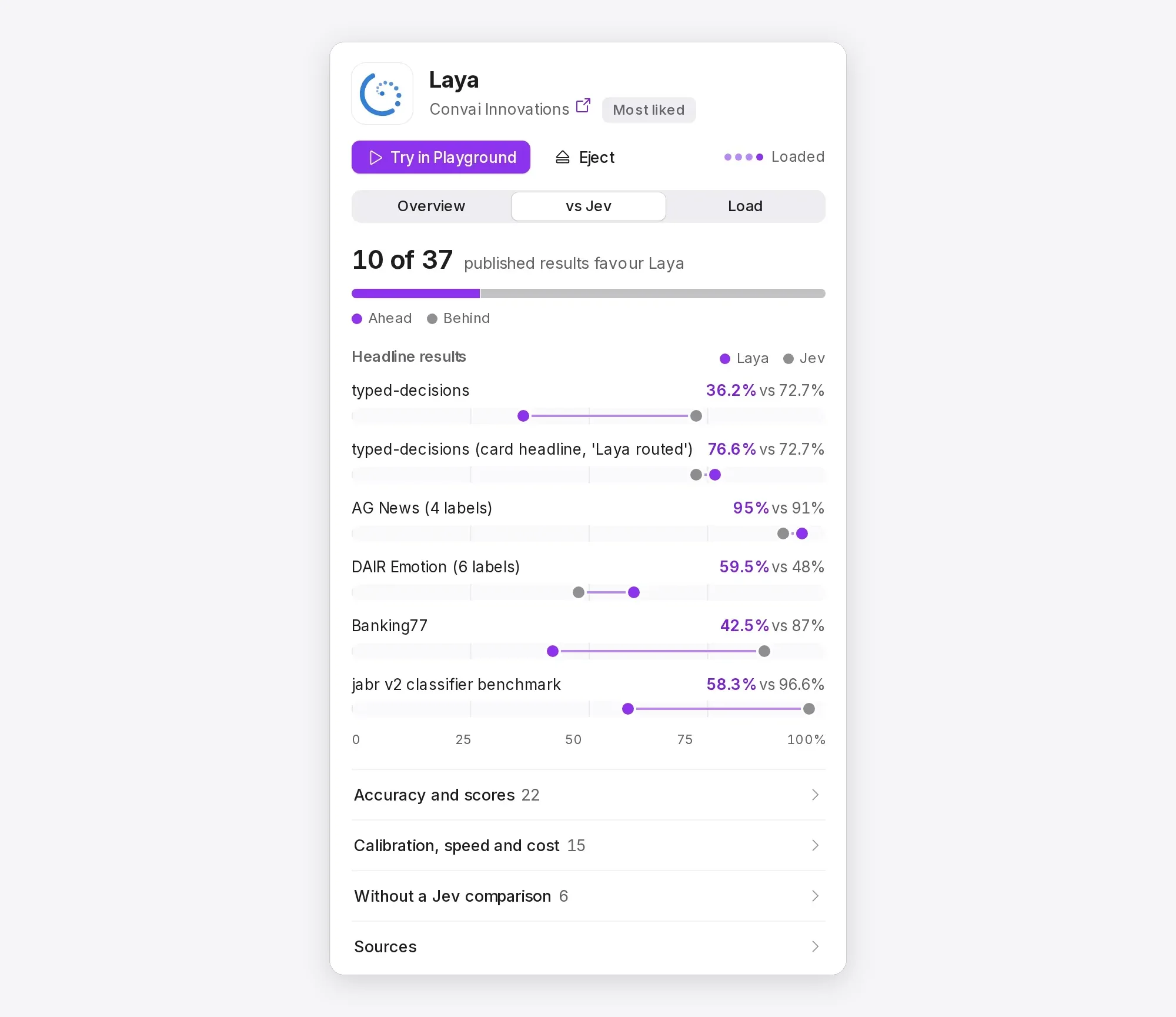
The bar at the top counts the results where the model is ahead of, level with or behind Jev. Headline results draws the main ones on a 0 to 100% scale. Below are Accuracy and scores, Calibration, speed and cost, results Without a Jev comparison, and the Sources. Publisher numbers are the makers' own claims; independent results come from third parties. Before relying on either, measure the model on your own data in Evaluate.
Load has the model's load settings and its files.
Download a model#
Select a model and choose Download, or choose Download models to pick several at once.
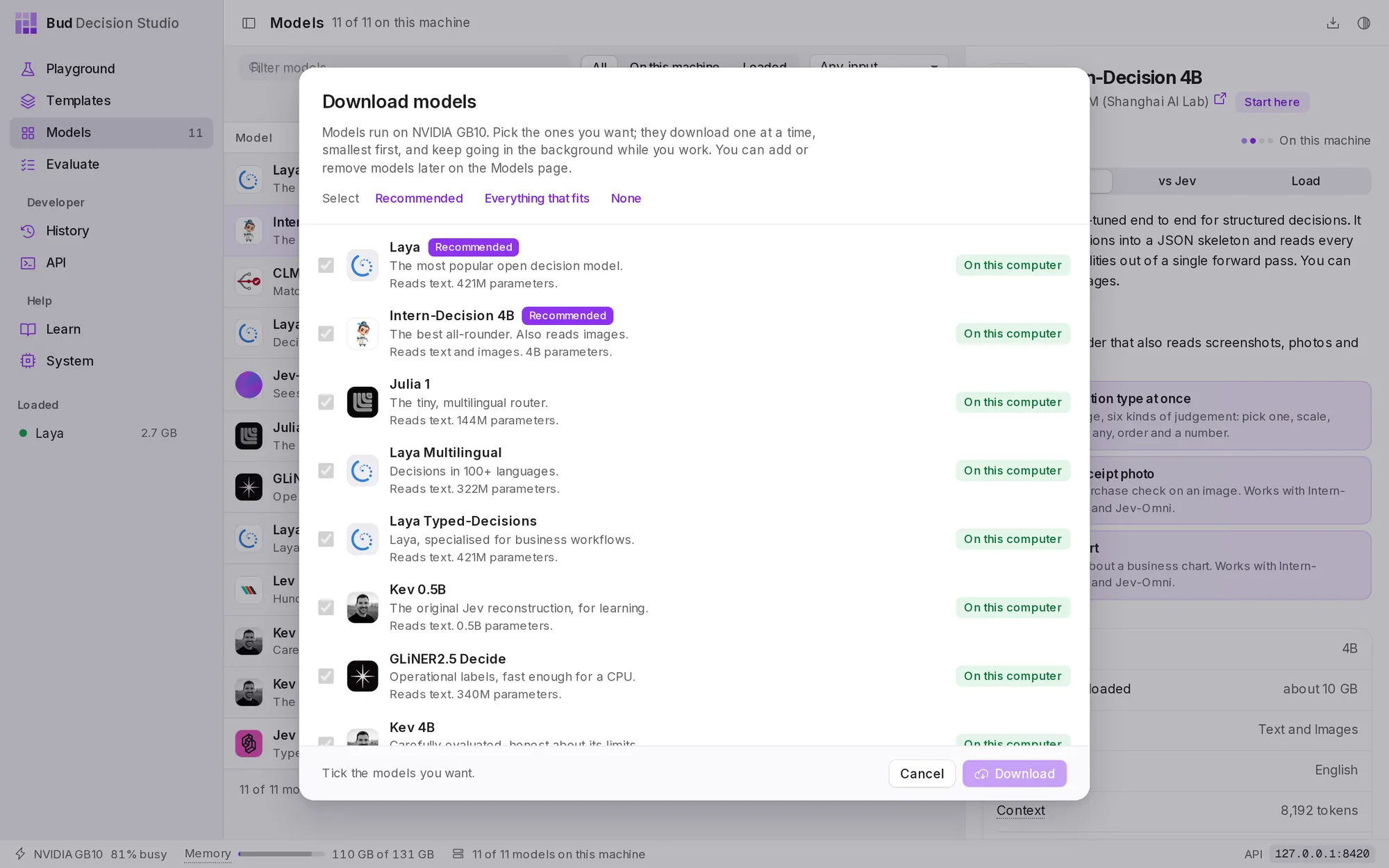
Models download one at a time, smallest first, in the background. The Downloads button in the title bar shows the queue, the progress and the time left, and can cancel a download. The models come from each publisher's Hugging Face repository and are stored in the standard Hugging Face cache, where other tools on your computer can use them too.
Some models are small adapters on top of a shared base model: Kev 4B and Lev, for example, both use the same Qwen base. The base is downloaded once and shared, and the page counts it once.
A model too large for this computer is marked Too large here, or Needs a GPU when the studio runs on the processor; point at the label for the reason.
Load and eject#
A model uses memory only while it is loaded. Choose Load, or simply use the model: the Playground and Evaluate load a model when they need it, and so do API requests that name a downloaded model (the System page can turn that off for API requests).
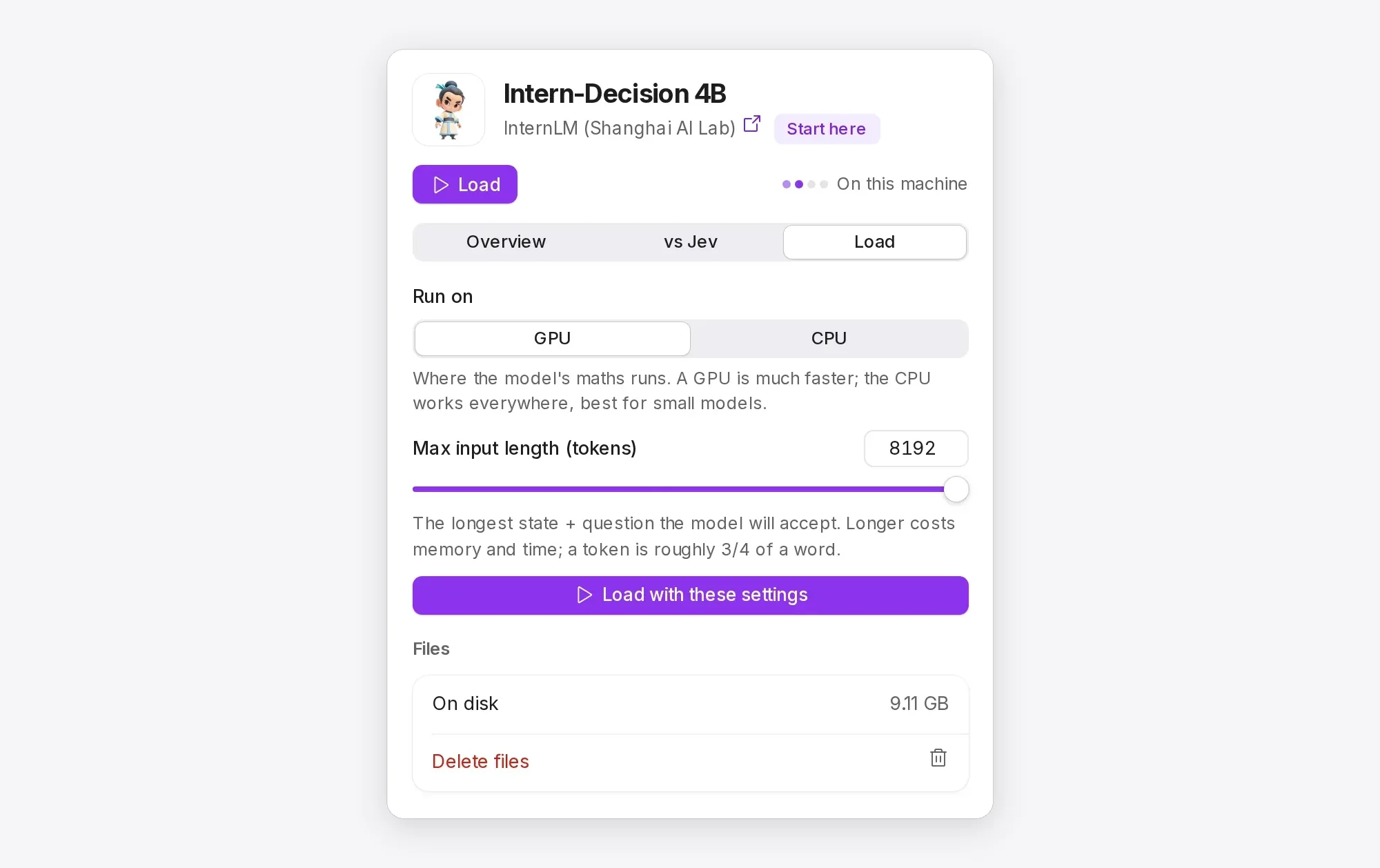
To choose how it runs, open the Load tab before loading. The settings depend on the model; most have:
| Setting | What it does |
|---|---|
| Run on | GPU or CPU for this model. A GPU is much faster; the CPU works everywhere and is fine for small models. |
| Max input length (tokens) | The longest situation and question the model will accept. Longer costs memory and time; a token is roughly three quarters of a word. |
Choose Load with these settings. Loading reads the model into memory once, which takes from a few seconds to a minute; after that, answers take milliseconds on a GPU. Once loaded, the tab shows the settings in use; eject the model to change them.
Eject unloads a model and returns all its memory. Its files stay on disk, so loading it again is quick. You can eject from this page, from the Loaded list in the sidebar, or with Eject all models on the System page. Each loaded model runs in its own process, so ejecting one, or one failing, never affects the others.
If a model needs more memory than is free, pointing at Load says so (for example, "Needs about 10 GB; only 6 GB is free. Eject another model first.").
When a model does not load#
The status changes to Failed to load and the buttons offer Retry and View log. The log is the model process's own output and usually names the problem: most often there was not enough free memory (eject other models or close other programs that use the GPU) or a file is missing (delete the model's files and download it again).
If a model loads but the System page marks it On the processor, the GPU did not have enough free memory when it loaded, so it runs about ten times slower. Eject other models, or close other programs using the GPU, and load it again.
Remove a model#
Open the model's Load tab and choose Delete files. The studio says how much disk this frees and keeps a base model that another downloaded model still uses. You can download the model again at any time.