
DocsUser manual
The app at a glance
The studio is one window with three parts that never move: the sidebar on the left, the page in the middle, and the status bar along the bottom. This page names each part and says which page to open for which job.
The window#
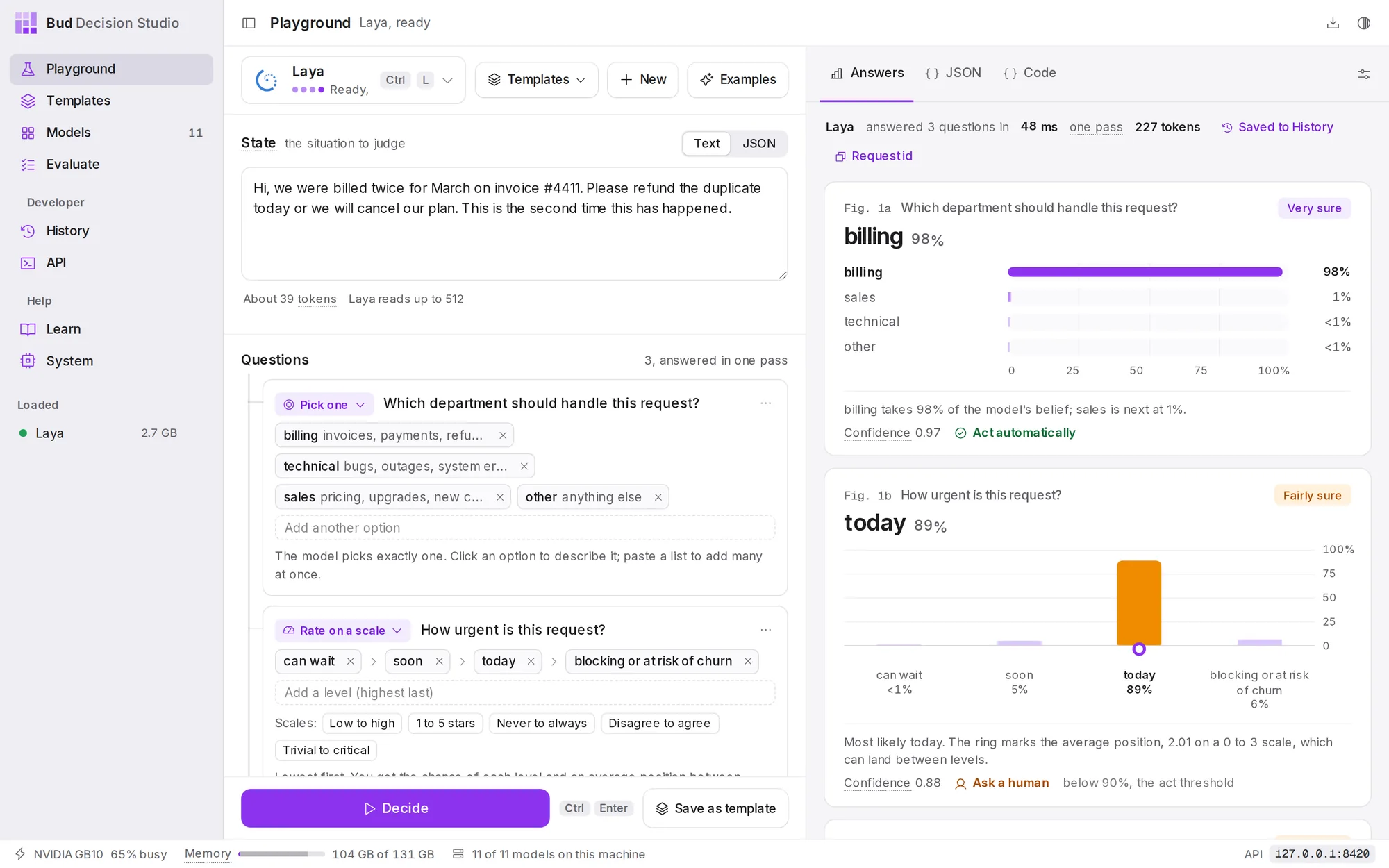
The sidebar lists the pages in three groups:
| Group | Pages |
|---|---|
| (top) | Playground, Templates, Models, Evaluate, Train |
| Developer | History, API |
| Help | Learn, System |
Next to Models is the number of models downloaded to this computer. Under the pages, Loaded lists the models in memory right now, with how much memory each one uses and an eject button that unloads it. A green dot means ready; other colours mean loading or failed.
The title bar shows the page's name and a short status beside it, such as which model the Playground is using. On the right:
- Downloads shows the download queue, with progress and the time left, and opens the model list to download more. A number on the button counts downloads in progress and queued.
- Colour theme cycles between following your system, light and dark.
- The button at the far left of the title bar hides or shows the sidebar.
The status bar shows where models run (the GPU's or processor's name) and how busy it is, a memory meter (violet for loaded models, grey for other programs), how many models are on this computer (the eleven, plus any you have trained), any download in progress, and the address of the studio's API.
Throughout the studio, a word with a dotted underline has a definition: point at it, or move to it with the keyboard, to read it.
The pages#
| Page | Open it to |
|---|---|
| Playground | Describe a situation, ask questions about it, and read every answer with its probabilities. Compare models, test option order, and save a decision as a template. |
| Templates | Keep decisions you reuse: their questions, variables, default model and settings, with every change saved as a numbered version. Compare two versions on real decisions. |
| Models | See the eleven open models, what each is good at and how it compares with Jev. Download, load and eject them. |
| Evaluate | Measure models on your own labelled examples: how often they are right, whether their percentages can be trusted, and which act threshold keeps mistakes under your limit. |
| Train | Teach a model your own decisions from a spreadsheet of examples. The studio tests the result on examples it never saw and keeps it only if it got better without forgetting anything. |
| History | Review every decision the studio made, from the app or from code. Filter, label the right answers, rerun on another model, and turn decisions into templates or test examples. |
| API | Find the studio's address, its endpoints and ready-to-run code. |
| Learn | Read a ten-minute introduction to decision models, with a live example. |
| System | Choose where models run, watch memory, and set when idle models are ejected. |
A typical session#
- Open Models and load the model you want (or let the Playground load it when you press Decide).
- In the Playground, describe the situation, add questions and press Decide.
- When the questions work, choose Save as template so your code can call them by name.
- Call the template from your code. Each call appears in History, where you check the decisions that asked a human and label the right answers.
- Before changing the template or switching models, measure the change in Evaluate, or save a new version and compare the two on the Templates page.
- When the model often decides differently from your team, export the decisions you labelled (or any spreadsheet of past decisions) and teach it on the Train page. The trained model appears beside the others; make it the template's default model.
Keyboard shortcuts#
| Keys | Where | What it does |
|---|---|---|
| Ctrl Enter | Playground | Decide |
| Ctrl L | Playground | Open the model list to choose or load a model |
| Enter, Esc | Model list | Choose the highlighted model, or close the list |
| ↑ ↓ | Models table | Move between models |
| Esc | Menus and dialogs | Close |
On a Mac, ⌘ works in place of Ctrl.
In a browser#
The studio's pages are served by the studio itself, so while the app is open you can also use it in any browser on the same computer at http://127.0.0.1:8420 (the status bar shows the exact address). A studio run from source has no app window at all: open that address in a browser.
The Playground and Evaluate remember what you were working on in the window or browser you used, so a draft survives closing the app. Decisions, templates and settings are kept by the studio itself and are the same in every window.