DocsUser manual
API, Learn and System
Three pages support the rest of the studio. API gives your code what it needs to call the studio. Learn is a ten-minute introduction to decision models. System shows where models run and how memory is used, and holds the settings for both.
The API page#
Open API from the sidebar. It has everything you need to call the studio from your own code.
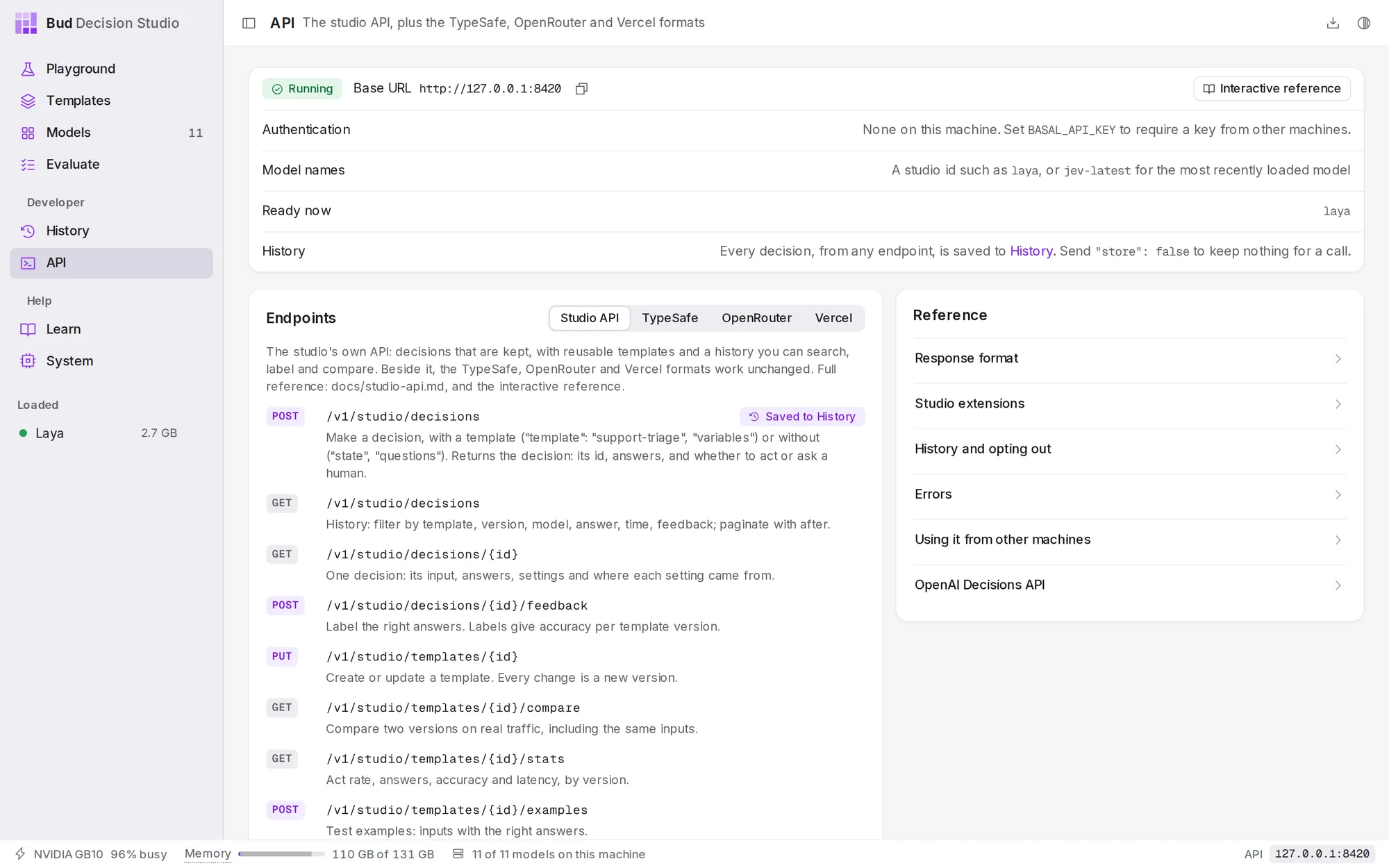
The top section shows that the server is Running and its Base URL (copy it with the button beside it). It also covers:
| Interactive reference | Opens /docs on the studio: every endpoint with its fields, and a Try it out button that sends real requests. |
| Authentication | None from this computer. Set BASAL_API_KEY to require a key from other computers. |
| Model names | A studio id such as laya, or jev-latest for the most recently loaded model. |
| Ready now | The ids of the loaded models. A request that names a downloaded model that is not loaded loads it first. |
| History | Every decision, from any endpoint, is saved to History. Send "store": false to keep nothing for a call. |
Endpoints lists the routes for each API format the studio speaks. Studio API is the studio's own: decisions that are kept, templates, History, labels and settings. TypeSafe, OpenRouter and Vercel are the published formats for Jev-like models, so code written for them works unchanged. Routes marked Saved to History record each call; the response's x-basal-decision-id header names the saved decision.
Quick start shows a complete call in curl, Python, JavaScript, or the official TypeSafe SDKs for Python and JavaScript. With Studio API selected, it runs the starter template for the Playground's support example; the SDK examples use TypeSafe's format. For your own decision, use the Playground's Code tab instead.
Reference folds the details into rows:
- Response format: the fields every answer carries, exactly as TypeSafe defines them.
- Studio extensions: the extra question types (
multi,rank,number), images, audio and video inmedia, a calibrationtemperature, and the headerX-Basal-Extensions: 1, which adds each answer'sdecision,top_probabilityandlatency_msto the TypeSafe-shaped responses. - History and opting out: what is kept and the ways to keep less (
"store": false, theX-Basal-Store: 0header, a template's storage, the History settings). - Errors: the status codes and what each means.
- Using it from other machines: see below.
- OpenAI Decisions API: announced but not yet published; the studio will add it once there is a specification.
The API reference documents every endpoint in full.
Calls from other computers#
The studio listens only on your own computer, and other websites open in your browser cannot send it requests. To serve other machines, run the studio from source with a key.
Clients then send Authorization: Bearer <key>. Requests that change things (loading, downloading or deleting models) must also send the header X-Basal-Client: 1.
BASAL_API_KEY=choose-a-long-random-key ./run.sh --host 0.0.0.0Learn#
Open Learn from the sidebar for a ten-minute introduction to decision models, written for people who have not used one before.
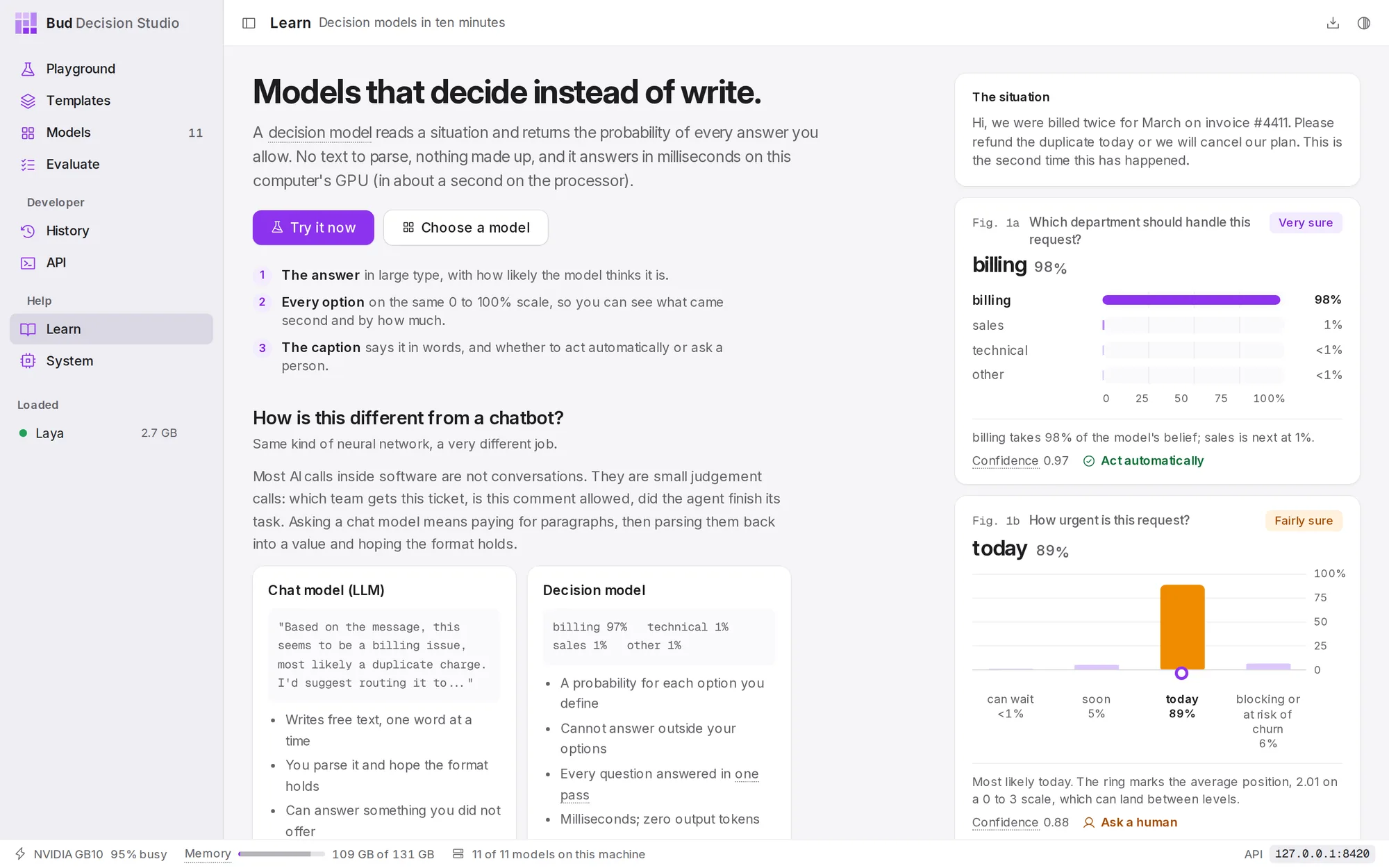
It covers:
- How to read a figure: the answer, every option on one scale, and the caption.
- How is this different from a chatbot? A decision model returns a probability for each option you define and cannot answer outside them; a chat model writes free text you have to parse.
- Six kinds of question, each with an example that opens in the Playground.
- Reading the numbers: probability, calibration and confidence gating, with a slider that shows how the act threshold trades automation for safety.
- Where they shine, and where they do not: good at routing, moderation, checking another AI's answer and choosing an agent's next action; poor at arithmetic, facts not in the text, multi-step reasoning and explaining why.
- What people build with them: every example, one click away.
- Your path: five steps that tick themselves off as you do them: download a model, load it, run your first decision, measure it on your own examples, and call it from your own code.
- Words you will see: the glossary behind every dotted word in the studio.
When a model is loaded, the decision on the right runs live on it. Without one, it shows answers recorded from Intern-Decision 4B.
System#
Open System from the sidebar to see where models run and how memory is used.
Where models run#
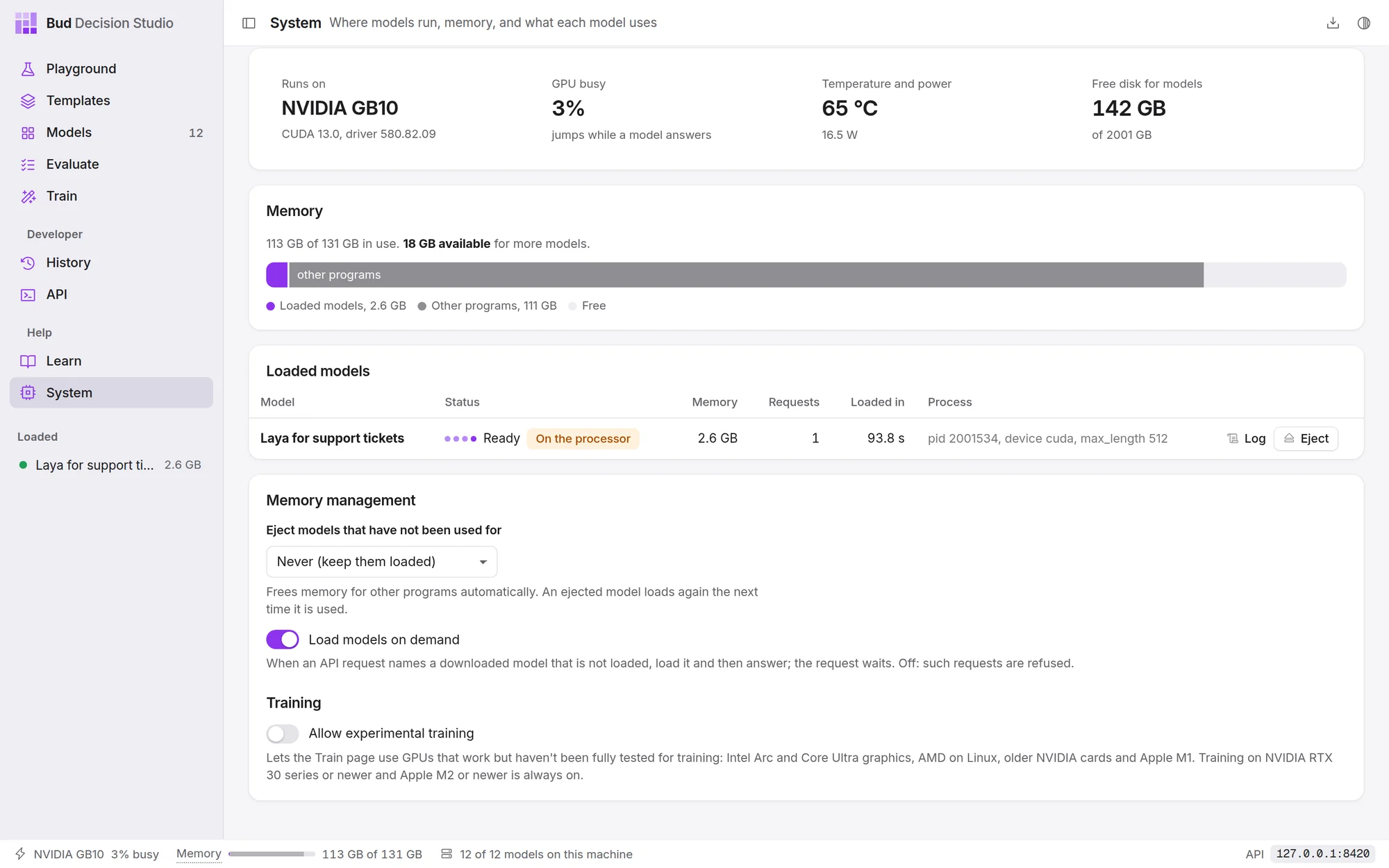
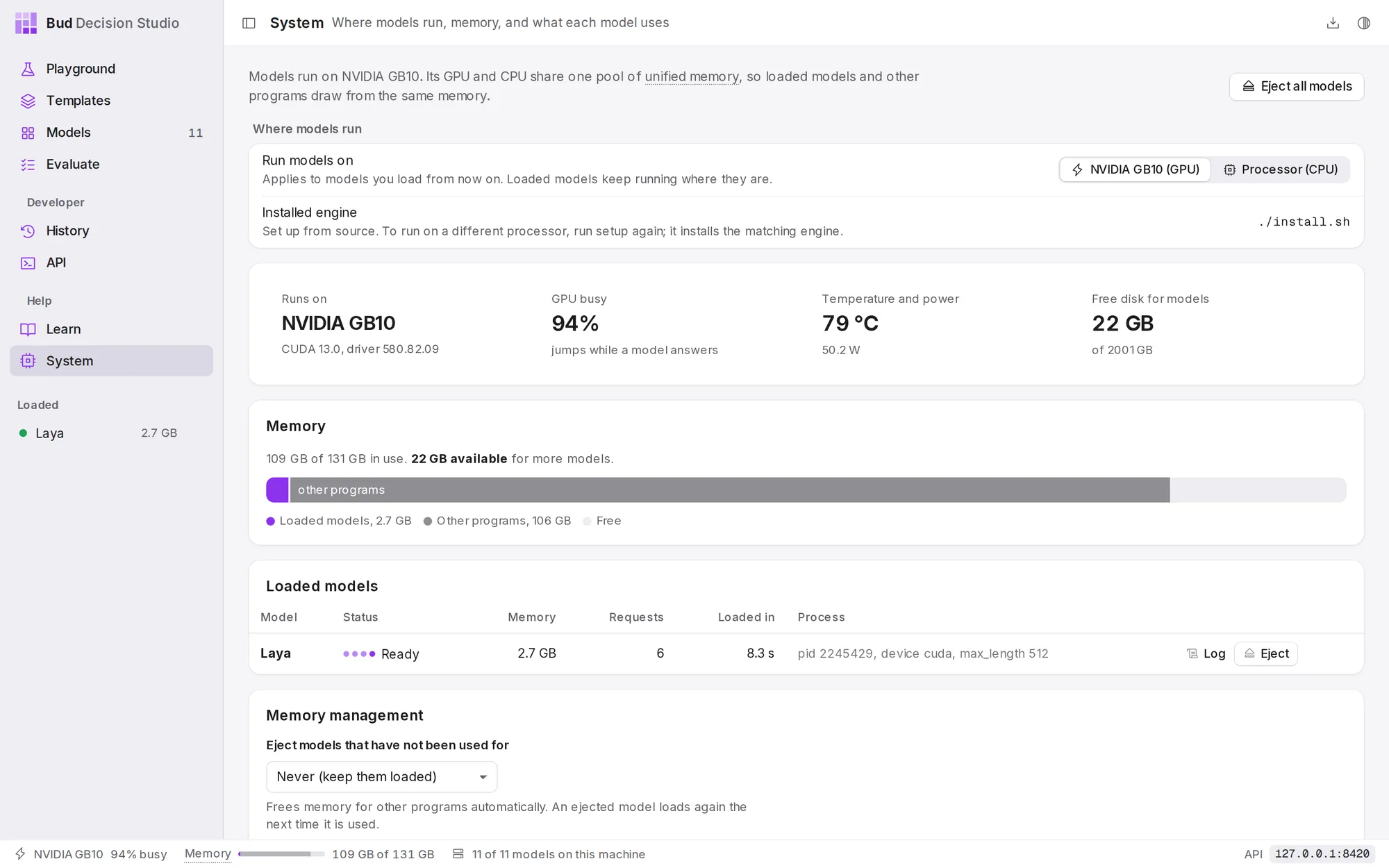
Run models on switches between the GPU and the processor (CPU). It applies to models you load from now on; loaded models keep running where they are. The choices are the ones the installed engine supports.
Installed engine says which PyTorch build is installed and when. To run models on a different kind of processor (for example, after adding a GPU), the engine must be reinstalled: in the desktop app, choose Run setup again; from source, run ./install.sh again.
Memory and load#
The figures at the top show what models run on, how busy it is (it jumps while a model answers), its temperature and power where the GPU reports them, and the free disk for models.
Memory shows how much memory is in use and how much is available for more models, split into loaded models (violet), other programs (grey) and free. On computers whose GPU and processor share one pool of memory, such as Apple Silicon Macs and the NVIDIA GB10, loaded models and other programs draw from the same memory, so a busy computer leaves less room for models.
Loaded models lists each model in memory: its status, the memory it uses, how many requests it has answered, how long it took to load, and its process and load settings. Log shows the model's own log; Eject unloads it. Eject all models at the top of the page unloads them all.
A model marked On the processor asked for the GPU but found too little free memory when it loaded, so it runs about ten times slower. Eject other models, or close other programs that use the GPU, and load it again.
Memory management#
| Setting | What it does |
|---|---|
| Eject models that have not been used for | Never (keep them loaded), 15 minutes, 1 hour or 4 hours. Frees memory for other programs automatically; an ejected model loads again the next time it is used. |
| Load models on demand | On: when an API request names a downloaded model that is not loaded, the studio loads it and then answers; the request waits. Off: such requests are refused. |
Training#
Allow experimental training lets the Train page use GPUs that work but haven't been tested for training as fully: Intel Arc and Core Ultra graphics, AMD on Linux, NVIDIA RTX 20 series and Apple M1. On NVIDIA RTX 30 series or newer and Apple M2 or newer, training is always on. The Train page offers the same switch as Try training on this GPU.